Quick Start
Moving the Calculator
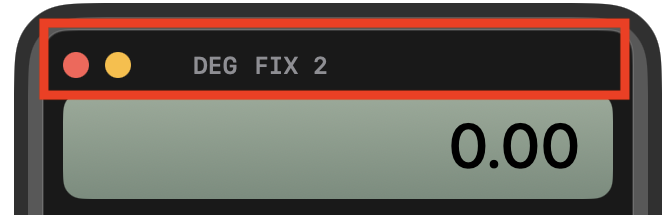
To move the calculator, click on and drag the top portion of the display area.
Shifted Functions
Many keys provide additional functions.
Tap the orange shift key [↖] to use the function printed in orange above a key.
Tap the blue shift key [↗] to use the function printed in blue.
For example:
[↖] [SIN] performs ASIN.
[↗] [SIN] enters π.
Keyboard Shortcuts
The following keyboard keys are mapped to their calculator equivalents:
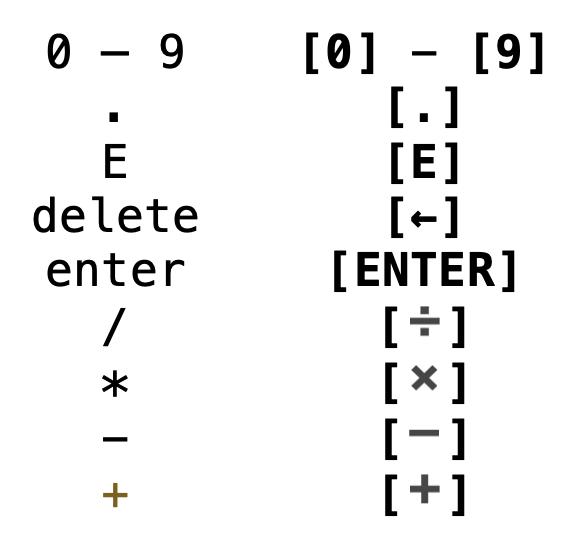
The Edit menu items Copy and Paste are also mapped:

Using RPN
RPN calculations do not use an equals key. Enter the numbers first, then the operation.
For example, to calculate 12 + 5:
12 [ENTER] 5 [+]
The display shows 17.
To calculate (12 + 5) × 3:
12 [ENTER] 5 [+] 3 [×]
The result is 51.
The RPN Stack
RPNCalc32 uses the traditional four-level RPN stack:
X — the number currently displayed
Y — the previous stack value
Z — the next stack value
T — the top stack value
The X register is shown in the main display. The T, Z and Y values are shown immediately below it.
[x↔y] exchanges the X and Y registers.
[R↓] rolls the stack downward.
[↖] [LAST X] recalls the previous value of X.
Clear and Editing
[←] deletes the most recently entered digit when entering a number or clears X when not.
[↖] [CLEAR] clears the stack and the memory register.
[C] clears X.
Display Format
Use [DSP] to change how numbers are displayed.
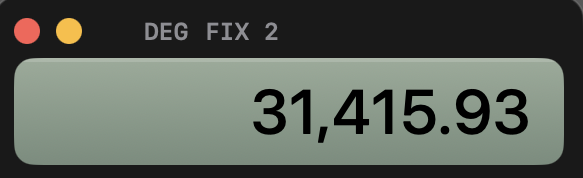
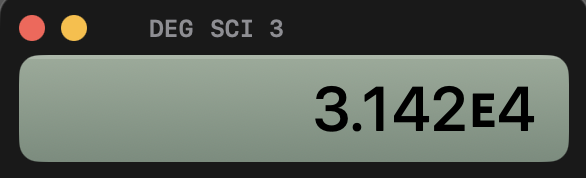
There are four formats available: FIXed, SCIentific, ENGineering, and ALL.
FIX 2
SCI 3
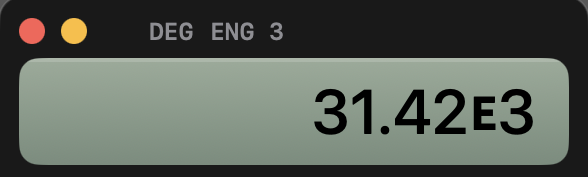
ENG 3
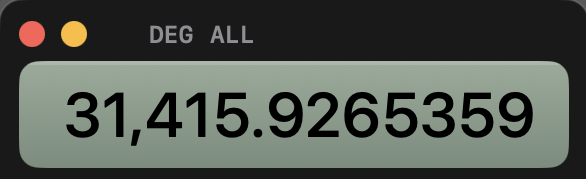
ALL
The first press brings up the digits mode.
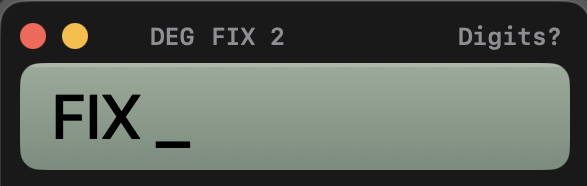
Press a number key to set the number of decimal places to display (for ENG mode this is the number of digits after the first significant digit).
Press [ENTER] to keep the current number of digits.
Press [DSP] again to rotate to the next format.
The current format is shown above the display.

Functions
RPNCalc32 includes commonly used scientific operations, including:
- powers and roots
- exponential and logarithmic functions
- trigonometric and inverse trigonometric functions
- hyperbolic functions
- complex functions
- factorial
- reciprocal
Memory
Use [STO] to store a value and [RCL] to recall it.
Stored values let you reuse intermediate results without re-entering them.
Percentages
[↗] [%] – calculates percentage of a number.
[↗] [%CHG] – calculates the percentage change between two values.
Coordinate and Angle Conversions
[↖] [→ø,r] – convert rectangular to polar coordinates.
[↗] [→y,x] – convert polar to rectangular coordinates.
[↖] [→DEG] — convert radians to degrees.
[↗] [→RAD] — convert degrees to radians.
Time Conversions
Time values can be expressed as H.MMSSss. (This format can also be applied to degree values.)
To convert between decimal hours and hours/minutes/seconds:
[↖] [→HR] — convert hours, minutes, and seconds to decimal hours.
[↗] [→HMS] — convert decimal hours to hours, minutes, and seconds.
Unit Conversions
Frequently used conversions are available directly from the keyboard:
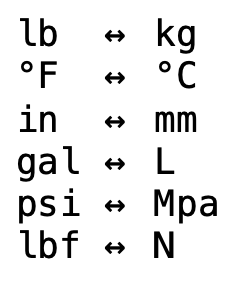
Use the orange [↖] and blue [↗] shift keys to select the conversion direction.
Copy and Paste
[↖] [x↑] – Pastes X into the clipboard.
[↗] [↓x] – Pastes the clipboard into X.
Trigonometric Mode
Use [↖] [MODE] to change the trigonometric angle setting. It cycles through DEGrees, RADians, and GRAD.
The current mode is shown above the display.
Hyperbolic Functions
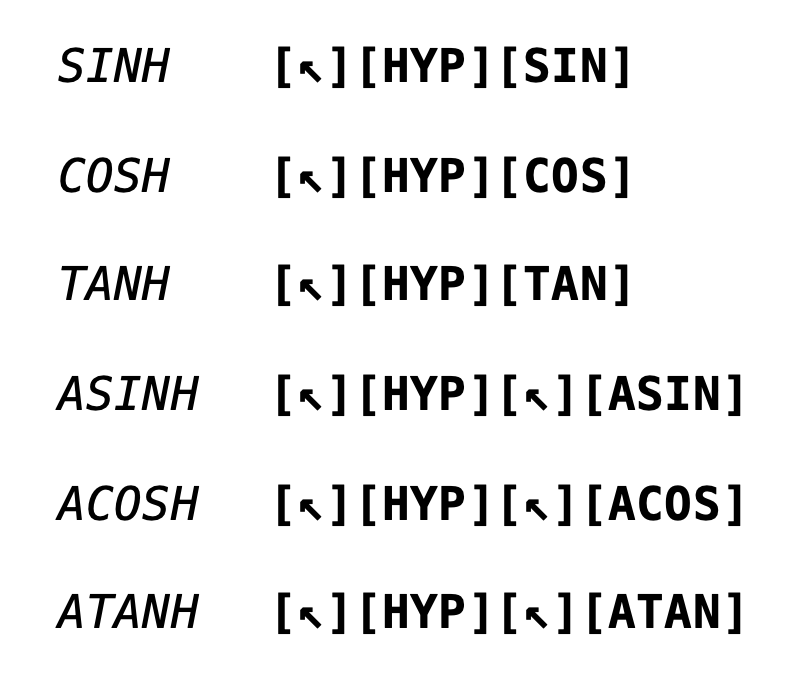
Use [↖] [HYP] to invoke the hyperbolic trigonometric functions.
Complex Numbers
Complex numbers are in the form: x + iy.
To enter a complex number:
Type the imaginary part.
Press [ENTER].
Type the real part.
The real part is displayed. Use [x↔y] to view the imaginary part.
To enter two complex numbers, you enter four seprate numbers. To do a complex operation, press [↖] [CMPLX] before the operator. For example, to do
(2 + i4) + (3 + i5)
press 4 [ENTER] 2 [ENTER] 5 [ENTER] 3 [↖] [CMPLX] [+]
The result is 5 + i9.
The Complex Stack
The complex stack is the regular stack split into two double registers for holding two complex numbers.
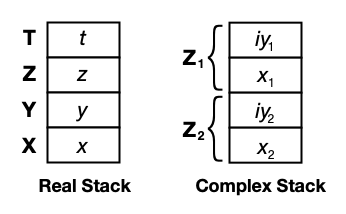
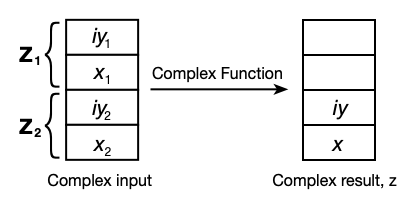
A complex function takes one or two complex numbers off the stack and returns the result in the two lower stack registers
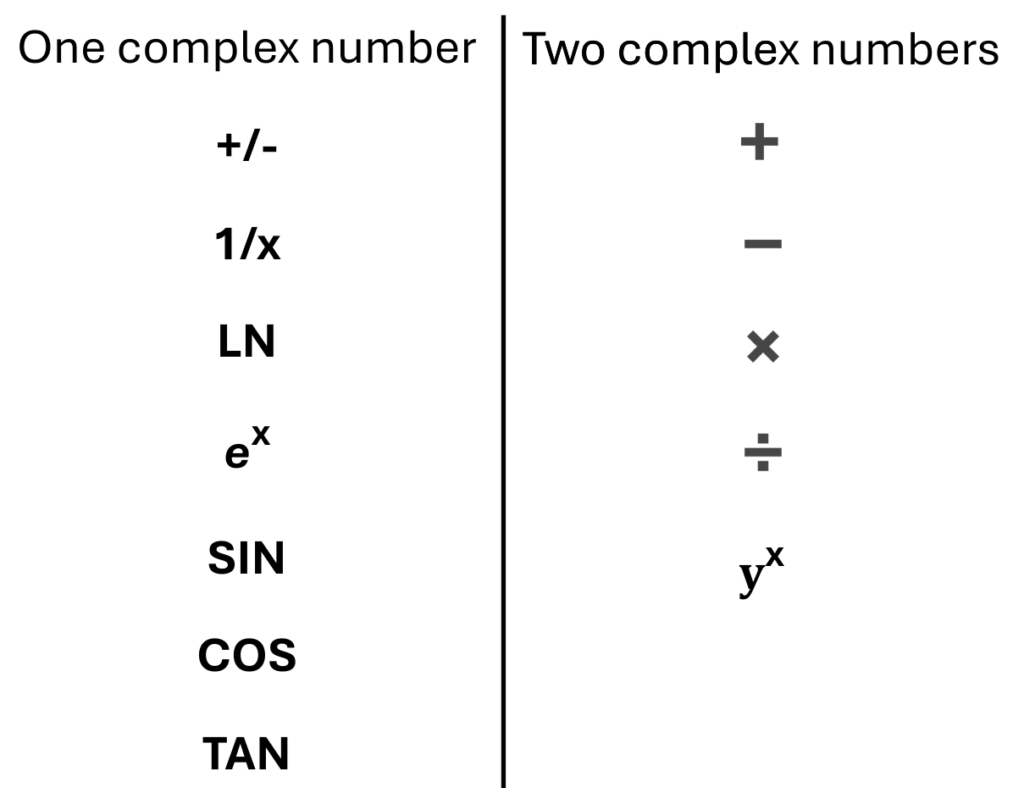
List of Complex Functions
Keeping a History
The calculator stores a history of operations performed.
It is accessed by tapping the display window. The most recent entry is at the bottom of the list.
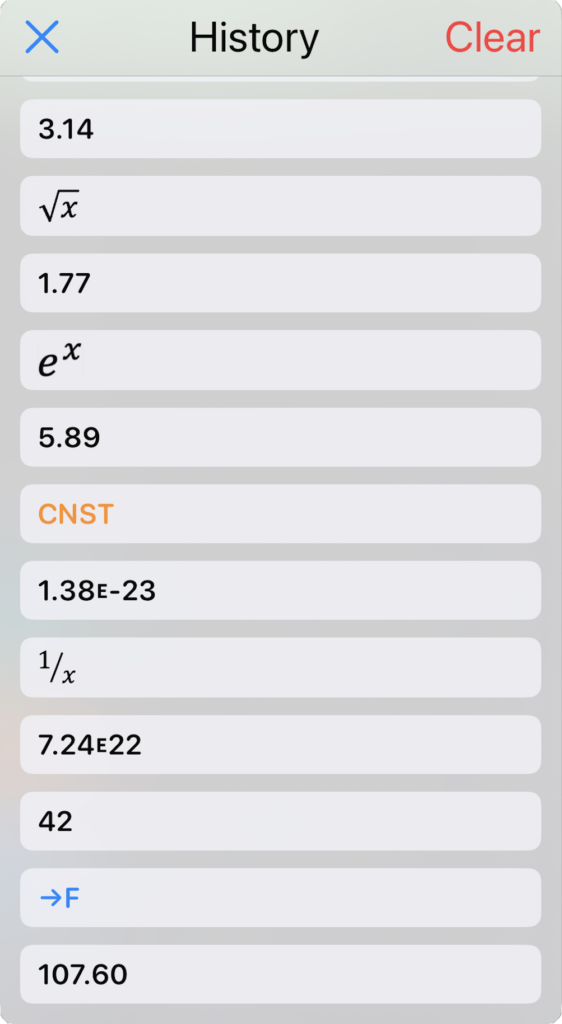
Tapping on a number entry places its value into X. This allows you to recover the result of a past operation.
Physical Constants
The calculator has 22 of the most common physical constants built-in.
Use [↖] [CNST] to display the list.
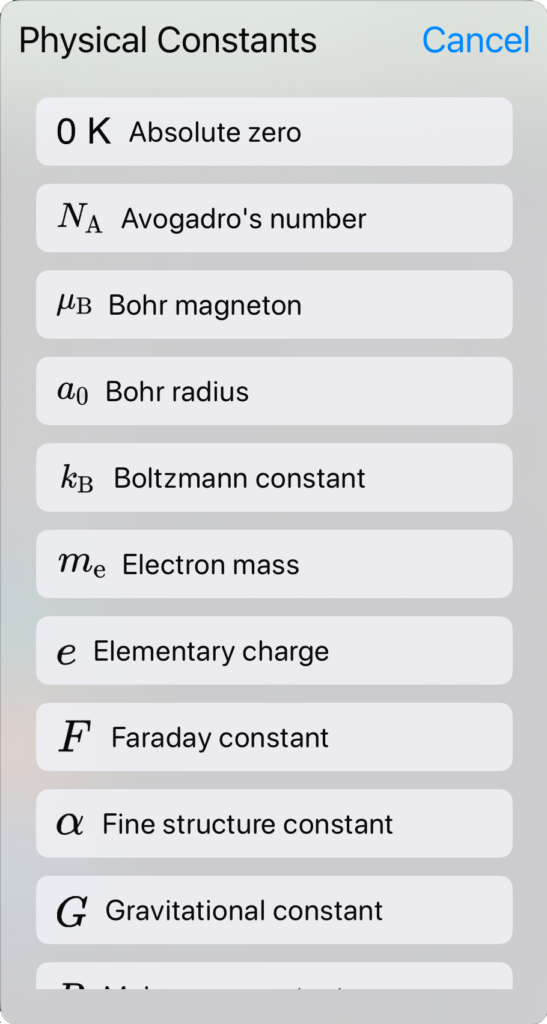
Tapping on a constant places its value into X.
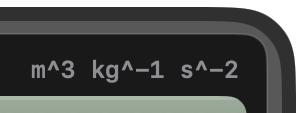
The units of the constant are shown in the message display.
Why RPN?
The debate between algebraic and Reverse Polish Notation (RPN) calculators was one of the defining arguments of the handheld calculator era in the 1970s and 1980s.
Algebraic calculators worked the way most people were taught to write mathematics: you entered expressions such as 2 + 3 × 4, and the calculator applied the standard order of operations. This made algebraic calculators immediately familiar to students and casual users. Manufacturers such as Texas Instruments, Casio, and Sharp eventually dominated the consumer market with this approach.
RPN, championed almost exclusively by Hewlett-Packard, took a different approach based on a stack. Instead of parentheses and operator precedence, users entered operands first and then the operator. For example, (2 + 3) × 4 would be entered as 2 Enter 3 + 4 ×.
To newcomers this initially seemed strange, but experienced users found it remarkably efficient. RPN eliminated the need for parentheses and reduced the number of keystrokes for many calculations. Engineers, scientists, and programmers often praised it for allowing them to concentrate on the calculation rather than on matching parentheses.
Many people, once they discovered the efficiency, clarity, and accuracy of RPN, became lifelong RPN enthusiasts.